Adding Items to a Menu
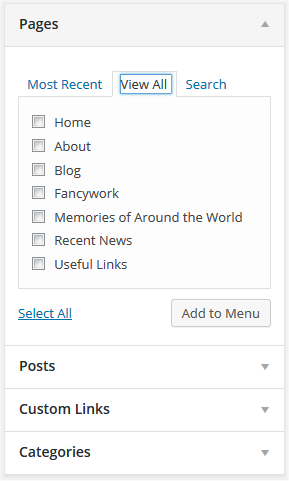
You can add different link types into your menu, these are split between panes left of the menu you’re currently editing.
- Locate the pane entitled Pages.
- Within this pane, select the View All link to bring up a list of all the currently published Pages on your site.
- Select the Pages that you want to add by clicking the checkbox next to each Page’s title.
- Click the Add to Menu button located at the bottom of this pane to add your selection(s) to the menu that you created in the previous step.
- Click the Save Menu button once you’ve added all the menu items you want.
Your custom menu has now been saved.
Note The Screen Options allow you to choose which items you can use to add to a menu. Certain items, like Tags are hidden by default.
Deleting a Menu Item
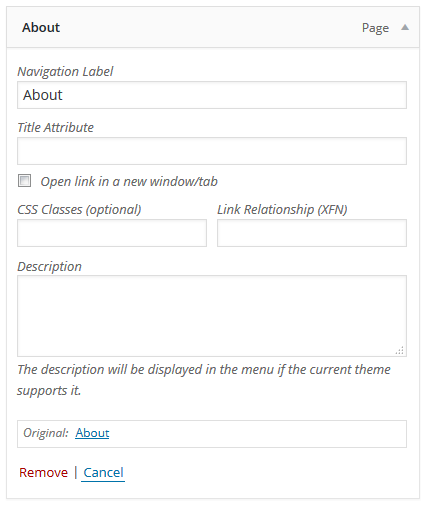
-
Locate the menu item that you want to remove in the menu editor window
-
Click on the arrow icon in the top right-hand corner of the menu item/box to expand it.
-
Click on the Remove link. The menu item/box will be immediately removed.
-
Click the Save Menu button to save your changes.
Customizing Menu Items
- Navigation Label
- This field specifies the title of the item on your custom menu. This is what your visitors will see when they visit your site/blog.
- Original
- A link to the original source of the menu item (e.g. a link to view the post or page).
Following items are hidden by default. Use Screen Options to show the required fields.
- Title Attribute
- This field specifies the Alternative (‘Alt’) text for the menu item. This text will be displayed when a user’s mouse hovers over a menu item.
- Link Target
- Select “Same window or tab” or “New window or tab” from the pulldown.
- CSS Classes
- Optional CSS Classes for this menu item
- Link Relationship (XFN)
- Allows for the generation of XFN attributes automatically so you can show how you are related to the authors/owners of site to which you are linking.
- Description
- Description for this link. The description will be displayed in the menu if the current theme supports it.
-
Click on the arrow in the top right-hand corner of the menu item to expand it.
-
Enter the values for the required fields that you want to assign to the item.
-
Click the Save Menu button to save your changes.
 George