Create a New Page
To add a new page to your website, take the following steps:
- Visit your site’s dashboard.
- Click on Pages on the left side.
- Click on the “Add new page” button.
- Choose from a large collection of ready-made page layouts, or click “Blank page” to create an empty page.
- Give your page a title by typing it in the box at the top that says “Add title“.
- If you selected a page layout in step 4, a title will have been added for you. You can edit this title if you wish.
- Click on the + block inserter icon to add new content, or click on any block to edit existing content

Adjust the Page Settings
When working on a page, you’ll find the page settings in the sidebar on the right side of your screen.
If you do not see the sidebar on the right, click the Settings icon in the top right corner to bring up the settings. This icon looks like a square with two uneven columns:

You can control the following aspects of the page here:
- Under Summary, you will find the following options:
- Use Visibility to make the page public, private, or protected behind a password.
- Set the page to Publish immediately or choose a date and time in the past or future.
- Select the Template that will control how the content of your page is presented. Page is the default template for pages.
- See and change the URL of the page.
- Mark the page as “Pending review” for other users of your site.
- Change the author of the page to another user on your site.
- On already-published pages, a “Switch to draft” button will appear. Click this to revert the public page to a non-public draft.
- Delete the page by clicking the “Move to trash” button.
- Write an excerpt to describe the page.
- Revisions: Using revisions, you can restore previously saved versions of the page. This option will appear only after you have saved some changes to the page.
- Choose a featured image to represent the page.
- Discussion: Allow people to leave public comments on the page.
- Page Attributes: Select the page’s parent and order number.
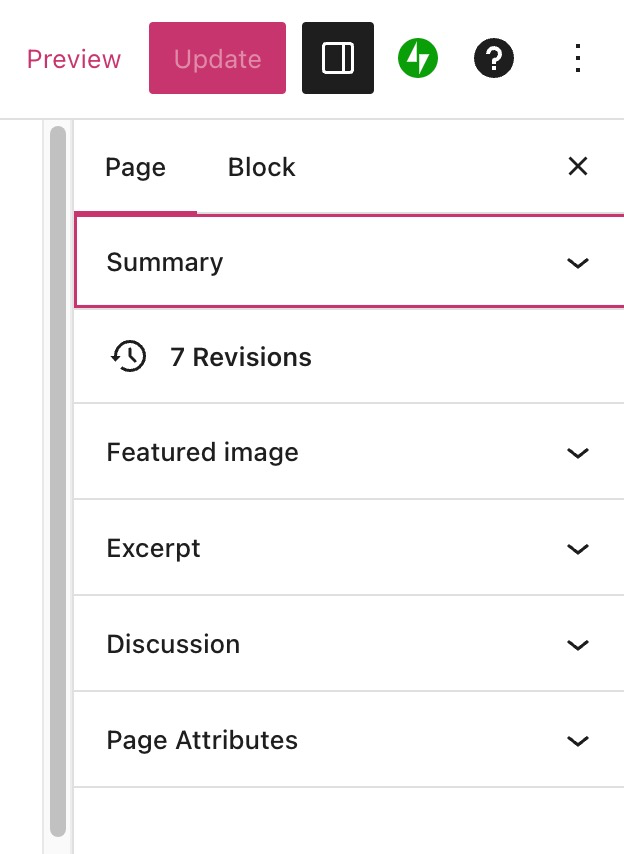
Publish a Page
In the top right of the screen, above the page settings, you’ll see several options for your new page:

These options are:
- Save draft: Save the latest version of your draft page.
- If this shows Saved instead, it means the latest version of your draft has been saved successfully.
- Preview: See what your page will look like on desktop, mobile, and tablet screens. Click Preview in new tab to see how the changes will look on the live site.
- Publish: Publish the draft page to your website.
- Settings Icon: Show or hide the page settings.
- Jetpack Icon: Show or hide additional options provided by the Jetpack plugin:
- Shortlink: Copy a shortened URL of the page.
- Social Previews: See how the page will appear on Google and social media.
- Likes and Sharing: Enable the Like button and social media sharing buttons.
- SEO: Customize the title and description of the page (eligible plans only.)
- QR Code: Generate a QR code for the published page.
- Help Icon: Open up the help center to search for guides or access support.
- Ellipses Menu (the three vertical dots): Open additional editor settings.
 George